Insight Groups
Insight Groups allow you to organize related insights into collections that can be assigned to AI Assistants and configured with webhook delivery. Groups provide a modular, reusable approach to conversation analysis.
Overview
An Insight Group is a named collection of insights with optional webhook configuration. Key features:
- Reusable - Assign the same group to multiple assistants.
- Modular - Mix and match insights across different groups.
- Flexible Delivery - Configure unique webhook URLs per group.
- Organized - Group insights by use case, department, or business function.
Accessing insight groups
- Log in to the Mission Control Portal.
- Navigate to AI, Storage and Compute > AI Insights.
- Click the AI Insight Groups tab.
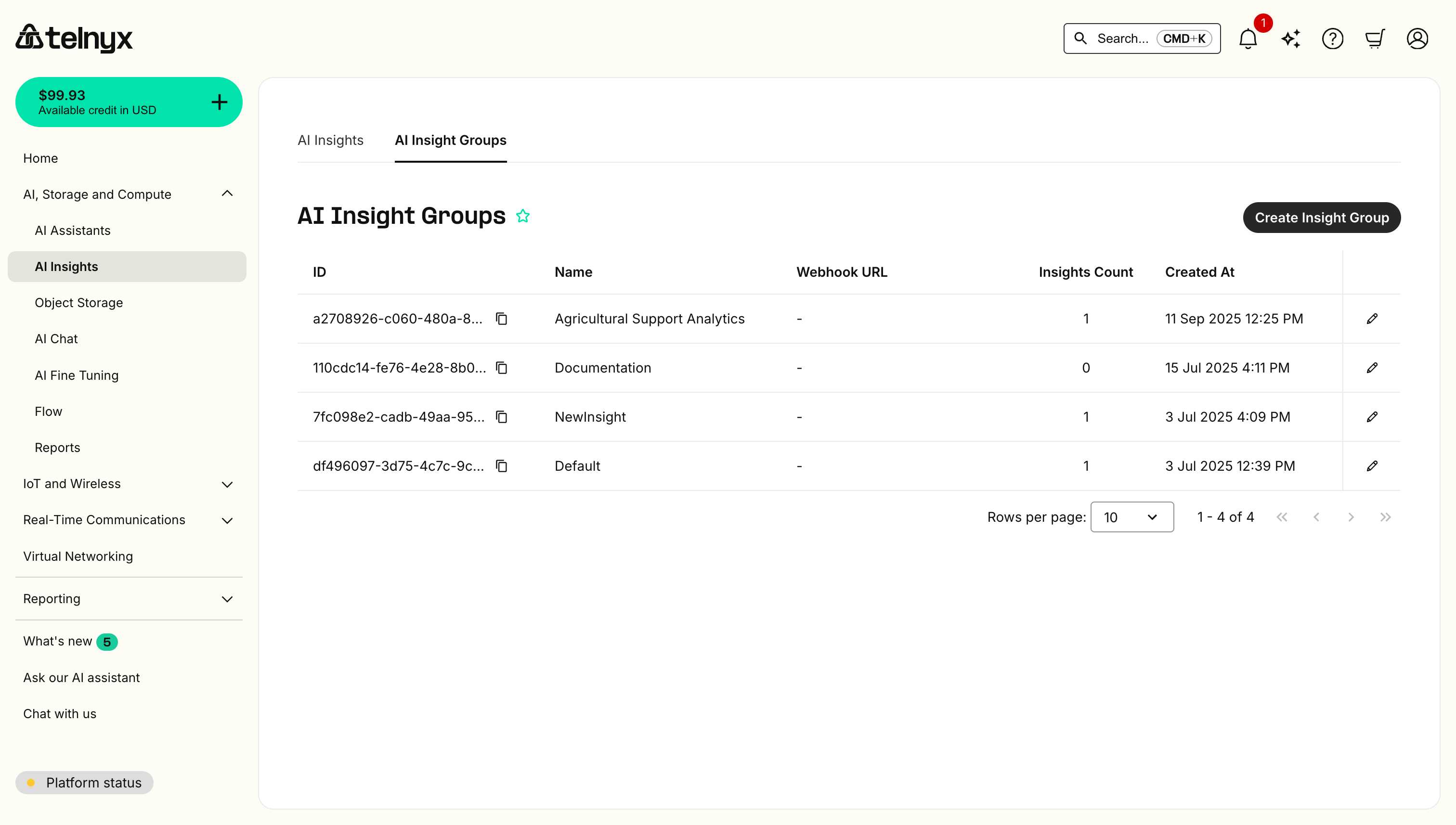
The page displays:
- ID - Unique identifier for the group (copyable).
- Name - Group name.
- Webhook URL - Configured webhook endpoint (or "-" if none).
- Insights Count - Number of insights in the group.
- Created At - When the group was created.
Creating an insight group
Step 1: Open the create dialog
Click the Create Insight Group button in the top-right corner.
Step 2: Configure the group
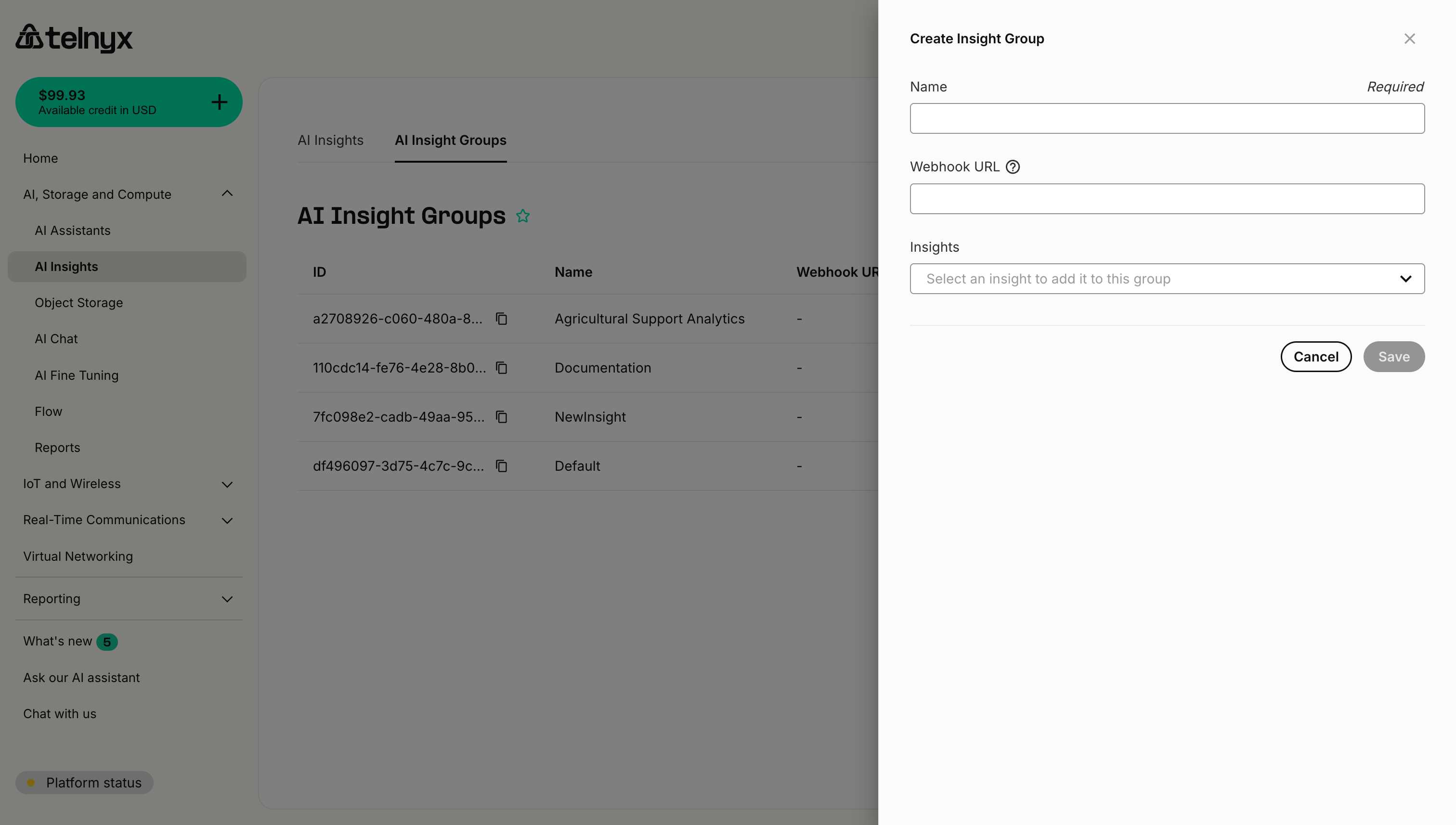
Fill in the following fields:
Name (required)
A descriptive name that indicates the group's purpose.
Examples:
- "Customer Service Analytics".
- "Sales Qualification Metrics".
- "Healthcare Compliance Checks".
- "E-commerce Customer Insights".
- "Support Ticket Classification".
Best practices:
- Use clear, business-oriented names.
- Include the use case or department.
- Avoid generic names like "Group 1" or "Test Group".
Webhook URL (optional)
The HTTPS endpoint where insight results will be sent after each conversation.
Format: https://your-domain.com/webhooks/insights
When to use:
- You want real-time insight delivery to your application.
- You're building dashboards or analytics systems.
- You need to trigger actions based on insights.
- You're integrating with external systems.
When to skip:
- You only need to view insights in the Portal.
- You're using the API to fetch insights on-demand.
- You're still testing and refining your insights.
Insights (multi-select)
Select which insights to include in this group:
- Click the Select an insight dropdown.
- Search or browse available insights.
- Click to add an insight to the group.
- Repeat to add multiple insights.
You can:
- Add multiple insights to one group.
- Use the same insight in multiple groups.
- Create groups with a single insight.
- Modify group membership after creation.
Step 3: Save the group
- Review your configuration.
- Click Save.
- The group will appear in the Insight Groups list.
Example configurations
Example 1: Customer support group
Name: Customer Support Analytics
Webhook URL: https://api.mycompany.com/webhooks/support-insights
Insights:
  - Customer Sentiment Analysis
  - Issue Classification
  - Resolution Status
  - Follow-up Required
Use Case: Automatically analyze support calls and send results to your ticketing system.
Example 2: Sales qualification group
Name: Sales Lead Qualification
Webhook URL: https://crm.mycompany.com/webhooks/lead-insights
Insights:
  - Budget Discussion
  - Decision Timeframe
  - Pain Points Identified
  - Competitor Mentions
  - Lead Score
Use Case: Score sales calls and update CRM with qualification data.
Example 3: Compliance monitoring group
Name: Healthcare Compliance
Webhook URL: https://compliance.healthcorp.com/insights
Insights:
  - HIPAA Compliance Check
  - Required Disclosures Made
  - Consent Verification
  - Patient Information Handled
Use Case: Ensure regulatory compliance and maintain audit trail.
Example 4: Quality assurance group
Name: Call Quality Metrics
Webhook URL: -
Insights:
  - Agent Performance
  - Script Adherence
  - Professional Tone
  - Issue Resolution Quality
Use Case: Manual review of call quality without webhook integration.
Managing insight groups
Editing a group
- Find the group in the list.
- Click the edit icon (pencil) on the right.
- Modify name, webhook URL, or insights.
- Click Save.
Note: Changes to the group will apply to all assistants using this group.
Copying a group ID
Each group has a unique ID for API access:
- Click the copy icon next to the group ID.
- The ID will be copied to your clipboard.
Example ID format: a2708926-c060-480a-8631-041cb7304117
Assigning groups to assistants
Via portal (during assistant creation)
When creating or editing an AI Assistant:
- Navigate to the Insights under Analysis tab.
- Select an Insight Group from the dropdown.
- Save the assistant configuration.
See the Voice Assistant Quickstart for detailed steps.
Via API
Use the insight_settings field when creating or updating an assistant:
curl -X POST https://api.telnyx.com/v2/ai/assistants \
  -H "Authorization: Bearer YOUR_API_KEY" \
  -H "Content-Type: application/json" \
  -d '{
    "name": "Customer Support Assistant",
    "model": "meta-llama/Meta-Llama-3.1-70B-Instruct",
    "instructions": "You are a helpful support assistant...",
    "insight_settings": {
      "insight_group_id": "a2708926-c060-480a-8631-041cb7304117"
    }
  }'
Using insights from groups
In conversation history
View insight results in the conversation history:
- Navigate to AI Assistants > select an assistant.
- Go to the Conversation History under Analysis tab.
- Click on a conversation.
- Scroll to the Insights section to see results.
With memory API
Filter which insights are included when querying conversation memory:
{
  "memory": {
    "conversation_query": "metadata->user_id=eq.123&limit=5",
    "insight_query": "insight_ids=insight_abc,insight_def,insight_xyz"
  }
}
Get insight IDs from your group:
- View the group details in the Portal.
- Copy the ID of each insight in the group.
- Include those IDs in the
insight_queryparameter.
Learn more in the Memory documentation.
Via webhooks
If you configured a webhook URL, results are automatically delivered:
{
  "event_type": "conversation.insights.completed",
  "conversation_id": "conv_abc123",
  "insight_group_id": "a2708926-c060-480a-8631-041cb7304117",
  "insight_group_name": "Customer Support Analytics",
  "insights": [
    {
      "insight_id": "insight_xyz789",
      "insight_name": "Customer Sentiment",
      "result": { "score": 8, "sentiment": "positive" }
    },
    {
      "insight_id": "insight_abc456",
      "insight_name": "Issue Type",
      "result": { "category": "technical", "priority": "high" }
    }
  ]
}
Organization strategies
By use case
Group insights by business function:
- "Sales Qualification".
- "Customer Support".
- "Compliance Monitoring".
- "Quality Assurance".
Benefits:
- Clear ownership by department.
- Focused analytics per use case.
- Easy to assign to specialized assistants.
By delivery destination
Group insights by webhook endpoint:
- "CRM Integration Group" →
https://crm.company.com/insights. - "Analytics Dashboard Group" →
https://analytics.company.com/insights. - "Ticket System Group" →
https://tickets.company.com/insights.
Benefits:
- Simplified webhook management.
- Targeted data delivery.
- System-specific insight collections.
By analysis type
Group insights by the kind of analysis:
- "Quantitative Metrics" (scores, ratings, counts).
- "Categorical Classification" (types, statuses, priorities).
- "Qualitative Analysis" (summaries, descriptions).
Benefits:
- Consistent data structures.
- Easier downstream processing.
- Clear analytical purpose.
Hybrid approach
Combine strategies for complex scenarios:
- "Sales - Quantitative" (lead scoring, budget ranges).
- "Sales - Qualitative" (pain points, objections).
- "Support - Urgent" (critical issues only).
- "Support - Complete" (all support metrics).
Best practices
1. Start small
Begin with a focused group:
- ✅ 2-4 related insights.
- ❌ 15+ insights covering everything.
You can always add more insights later.
2. Test without webhooks first
When creating a new group:
- Leave webhook URL empty initially.
- Assign to a test assistant.
- Review results in the Portal.
- Add webhook once validated.
3. Use descriptive names
Make group purpose immediately clear:
- ✅ "Healthcare Compliance Checks".
- ✅ "E-commerce Order Analysis".
- ❌ "Group 1".
- ❌ "Test".
4. Document webhook endpoints
Maintain documentation of:
- What each webhook URL expects.
- Who owns the endpoint.
- What system processes the insights.
- How to troubleshoot delivery issues.
5. Version your groups
When making significant changes:
- Create a new group (e.g., "Support Analytics v2").
- Test with a subset of assistants.
- Migrate fully once validated.
- Retire the old group.
6. Monitor insights count
Keep groups manageable:
- 1-5 insights: Focused, fast analysis.
- 5-10 insights: Comprehensive, still efficient.
- 10+ insights: May be slower, consider splitting.
Troubleshooting
Insights not appearing
Check:
- Is the group assigned to the assistant?
- Did a conversation complete after assignment?
- Are the individual insights configured correctly?
Webhook not receiving data
Check:
- Is the webhook URL correct and accessible?
- Is the endpoint returning 200 OK status?
- Check webhook logs in your application.
Wrong insights in group
Solution:
- Edit the group.
- Remove incorrect insights.
- Add correct insights.
- Save changes.
Changes apply to future conversations immediately.
Next steps
- Explore Use Cases - Industry-specific group examples.
- Assign to Assistants - Connect groups to your AI assistants.
Related resources
- Creating Insights - Build insights for your groups.
- Structured Insights - Define consistent data schemas.
- Memory - Use insights with conversation memory.
- API Reference - Programmatic group management.